
Here’s what to do depending on your phone type:
Android
- Open web.whatsapp.com on your computer using the web browser (Chrome, Firefox, Opera, Safari or Edge are compatible)
- Open the WhatsApp app on your phone by tapping on it
- Open the Chats screen and select Menu and then WhatsApp Web
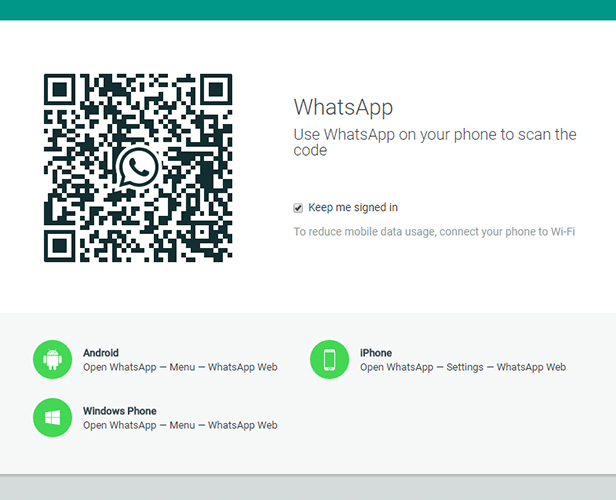
- There will be a QR code (looks like a scrambled barcode) on the computer screen. Scan this using your phone
- WhatsApp will then open in your computer browser and you’ll be able to use it as to send messages as you would on your phone
- When you’ve finished your session, remember to log out. Click on the three-dot menu above the chats list on the left hand side of the screen
- Click on Log out at the bottom of the list
iPhone
- Open web.whatsapp.com on your computer using the web browser (Chrome, Firefox, Opera, Safari or Edge are compatible)
- Open the WhatsApp app on your phone by tapping on it
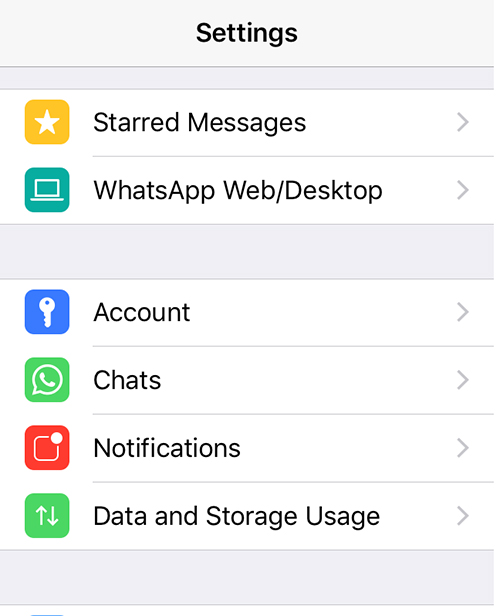
- If you are in a chat, navigate back to the main Chats screen and select Settings from the bottom menu
- Then select WhatsApp Web
- There will be a QR code (looks like a scrambled barcode) on the computer screen. Scan this using your phone
- WhatsApp will then open in your computer browser and you’ll be able to use it as to send messages as you would on your phone
- When you’ve finished your session, remember to log out. Click on the three-dot menu above the chats list on the left hand side of the screen
- Click on Log out at the bottom of the list
Blackberry
- Open web.whatsapp.com on your computer using the web browser (Chrome, Firefox, Opera, Safari or Edge are compatible)
- Open the WhatsApp app on your phone by tapping on it
- Go to Chats, then Menu, then WhatsApp Web
- There will be a QR code (looks like a scrambled barcode) on the computer screen. Scan this using your phone
- WhatsApp will then open in your computer browser and you’ll be able to use it as to send messages as you would on your phone
- When you’ve finished your session, remember to log out. Click on the three-dot menu above the chats list on the left hand side of the screen
- Click on Log out at the bottom of the list
Windows Phone
- Open web.whatsapp.com on your computer using the web browser (Chrome, Firefox, Opera, Safari or Edge are compatible)
- Open the WhatsApp app on your phone by tapping on it
- Go to Menu, then WhatsApp Web
- There will be a QR code (looks like a scrambled barcode) on the computer screen. Scan this using your phone
- WhatsApp will then open in your computer browser and you’ll be able to use it as to send messages as you would on your phone
- When you’ve finished your session, remember to log out. Click on the three-dot menu above the chats list on the left hand side of the screen
- Click on Log out at the bottom of the list
Discover more from Makao Bora
Subscribe to get the latest posts sent to your email.


Join The Discussion